
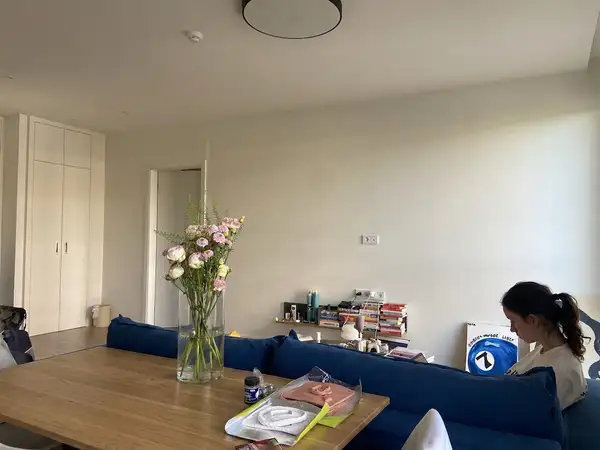
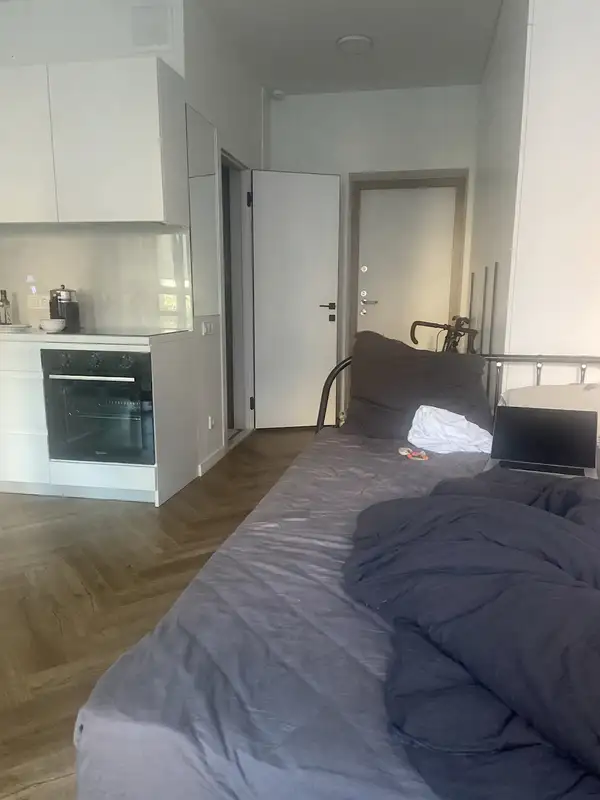

Room Redesign Object Edit API

roomix/room-redesign/object-edit

Edit architectural objects in photos by brushing the target area in yellow. Remove objects, change colors, swap materials, or apply custom edits to interior and exterior spaces.

Starts from $0.035 /run
4 model optionspublicpublished

Wrapper Input

Input

URL of the source image to edit, with the target object/area brushed over in bright yellow. The yellow marking only selects the region and will not appear in the result.

Describe what you want to do with the object in the yellow-brushed area. Examples: 'Remove the object and fill naturally', 'Replace with a modern bookshelf', 'Change to a minimalist style'.

Target color for the brushed object. Use 'auto' to keep the current color, or specify a color (e.g. 'navy blue', 'warm white', 'matte black', '#8B4513').

Target material for the brushed object. Use 'auto' to keep the current material, or specify a material (e.g. 'marble', 'brushed oak', 'polished concrete', 'leather').

You need to be logged in to run this model and view results.
Log in

Wrapper Output

Output

Loading
Generated in 14.337 seconds
Logs (1 lines)

Wrapper Examples

Examples

Example output 1Example output 2Example output 3

Pricing

Base ModelPricing ModeEffective Cost
nano-banana-2/editdefaultmegapixel tieredTiered pricing
nano-bananaper output0.039
seedream-v5/editper output0.035
seedream-v4.5/editper output0.04

Room Redesign Object Edit API

Room Redesign Object Edit is a image-to-image AI wrapper by roomix. On ModelRunner it runs through a REST API or via MCP from any AI assistant with pay-per-use pricing.

POST https://queue.modelrunner.run/roomix/room-redesign/object-edit

cURL

# Submit a request to the queue. Input fields go at the top level of the
# body. The optional reserved "metadata" object holds your own flat string
# tags — stored on the request, never sent to the model; filter later with
# GET https://queue.modelrunner.run/requests?metadata=<url-encoded JSON>.
curl -X POST https://queue.modelrunner.run/roomix/room-redesign/object-edit \
  -H "Authorization: Key $MRUN_API_KEY" \
  -H "Content-Type: application/json" \
  -d '{
    "color": "auto",
    "prompt": "Remove the object in selected area and fill naturally.",
    "file_url": "https://media.modelrunner.ai/O0fHNb0ARz1SeCeW-brushed-48C2842E-4FE4-4CBF-A373-425E6C688EF7.jpg",
    "material": "auto",
    "metadata": {
      "project": "my-project"
    }
  }'
# → { "request_id": "...", "status_url": "...", "response_url": "..." }

# Poll status_url until "COMPLETED", then fetch the result
curl "https://queue.modelrunner.run/roomix/room-redesign/object-edit/requests/$REQUEST_ID/status" \
  -H "Authorization: Key $MRUN_API_KEY"
curl "https://queue.modelrunner.run/roomix/room-redesign/object-edit/requests/$REQUEST_ID" \
  -H "Authorization: Key $MRUN_API_KEY"

JavaScript

import { modelrunner } from "@modelrunner/client";

const result = await modelrunner.subscribe("roomix/room-redesign/object-edit", {
  input: {
    "color": "auto",
    "prompt": "Remove the object in selected area and fill naturally.",
    "file_url": "https://media.modelrunner.ai/O0fHNb0ARz1SeCeW-brushed-48C2842E-4FE4-4CBF-A373-425E6C688EF7.jpg",
    "material": "auto"
  },
});
console.log(result);

Python

import os
import requests

headers = {"Authorization": f"Key {os.environ['MRUN_API_KEY']}"}

submitted = requests.post(
    "https://queue.modelrunner.run/roomix/room-redesign/object-edit",
    headers=headers,
    json={
      "color": "auto",
      "prompt": "Remove the object in selected area and fill naturally.",
      "file_url": "https://media.modelrunner.ai/O0fHNb0ARz1SeCeW-brushed-48C2842E-4FE4-4CBF-A373-425E6C688EF7.jpg",
      "material": "auto"
    },
).json()

# Poll submitted["status_url"] until "COMPLETED", then:
result = requests.get(submitted["response_url"], headers=headers).json()

Input parameters

NameTypeRequiredDescription
file_urlstring (uri)yesURL of the source image to edit, with the target object/area brushed over in bright yellow. The yellow marking only selects the region and will not appear in the result.
promptstringyesDescribe what you want to do with the object in the yellow-brushed area. Examples: 'Remove the object and fill naturally', 'Replace with a modern bookshelf', 'Change to a minimalist style'.
colorstringnoTarget color for the brushed object. Use 'auto' to keep the current color, or specify a color (e.g. 'navy blue', 'warm white', 'matte black', '#8B4513'). Default: "auto".
materialstringnoTarget material for the brushed object. Use 'auto' to keep the current material, or specify a material (e.g. 'marble', 'brushed oak', 'polished concrete', 'leather'). Default: "auto".

Machine-readable: OpenAPI schema · llms.txt

Use Room Redesign Object Edit from Claude & Cursor (MCP)

Point Claude Code, Claude Desktop, Cursor, or any MCP client at the ModelRunner MCP server and Room Redesign Object Edit becomes a tool your assistant can call directly — it authorizes via OAuth (no API key in config) and runs this wrapper with the run_model tool using the endpoint roomix/room-redesign/object-edit.

MCP client config (Claude Desktop, Cursor)

{
  "mcpServers": {
    "modelrunner": {
      "command": "npx",
      "args": ["-y", "mcp-remote", "https://mcp.modelrunner.run/mcp"]
    }
  }
}

Claude Code

claude mcp add --transport http modelrunner https://mcp.modelrunner.run/mcp

Then ask your assistant, for example: “Run roomix/room-redesign/object-edit on ModelRunner to generate image”. MCP setup guide.

Wrapper Details

Model Details

## Room Redesign Object Edit

Make precise, brush-guided edits to objects in architectural and interior/exterior photographs. Perfect for designers, architects, and homeowners who want to visualize changes to specific elements in a space.

### Capabilities

- **Remove objects** – Erase furniture, fixtures, or clutter from a room and fill the area naturally. - **Change color** – Repaint walls, furniture, cabinets, or any brushed object to a new color. - **Change material** – Swap surfaces like wood to marble, fabric to leather, brick to stone, etc. - **Custom edits** – Describe any edit you want applied to the brushed area.

### How It Works

1. Take a photo of your interior or exterior space and **brush over the object or area you want to edit in bright yellow** (any image editor works). 2. Provide that brushed image as the source (`file_url`). The yellow marking only selects the region — it is removed from the final result. 3. Write a prompt describing what you want to do with the object in the yellow area. 4. Optionally set `color` or `material` to override those properties (defaults to `auto`, which preserves the current value). 5. Receive the edited image with your changes applied seamlessly and the yellow marking gone.

### Marking the Area

Brush the yellow selection using any image editor (e.g., Photoshop, GIMP, Figma, Procreate, or even MS Paint): - Open your source photo. - Use a **bright yellow** brush to paint over the object or area you want to edit. - Cover the whole object you want affected — you don't need to be pixel-perfect, just stay within it. - Save and upload. The yellow guides the edit and won't appear in the output.

### Use Cases

- Visualize a kitchen with different countertop materials - Preview wall color changes before painting - Remove unwanted furniture from a staging photo - Swap flooring materials in a living room - Test exterior siding or roofing alternatives - Change cabinet finishes or hardware styles - Preview different tile or backsplash options