
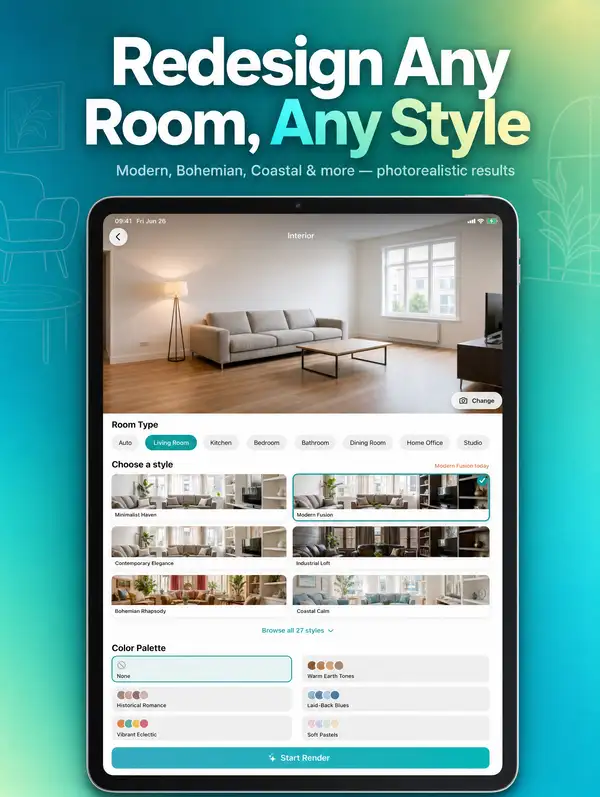
hakankaan / app-store-screenshot-composer

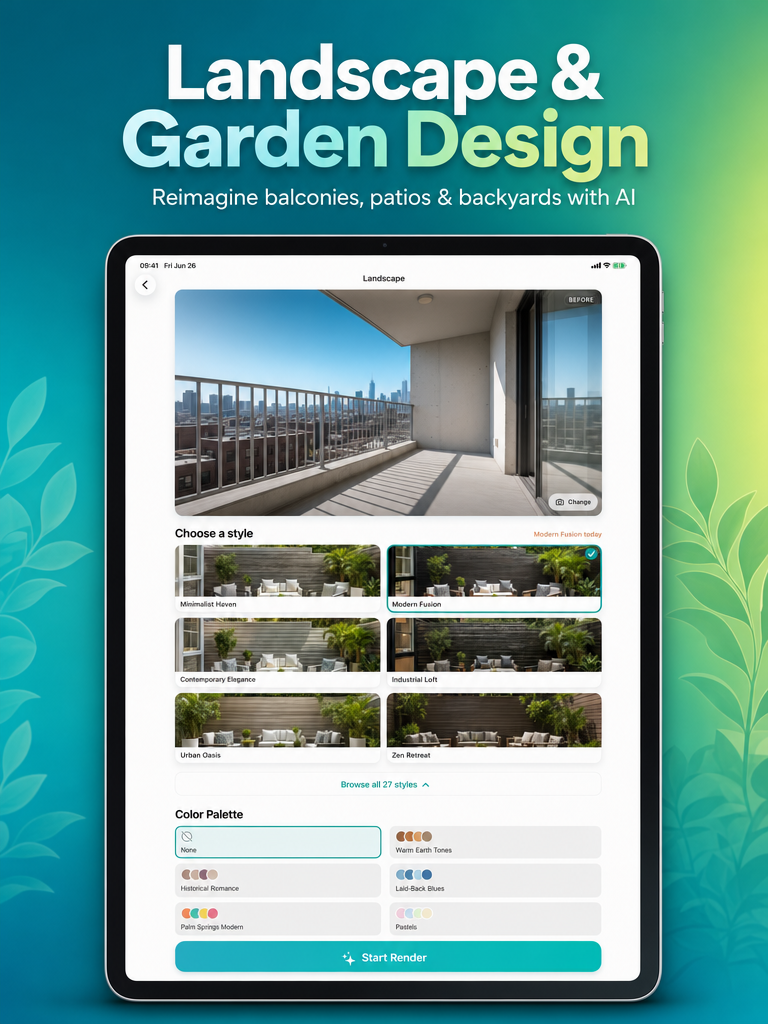
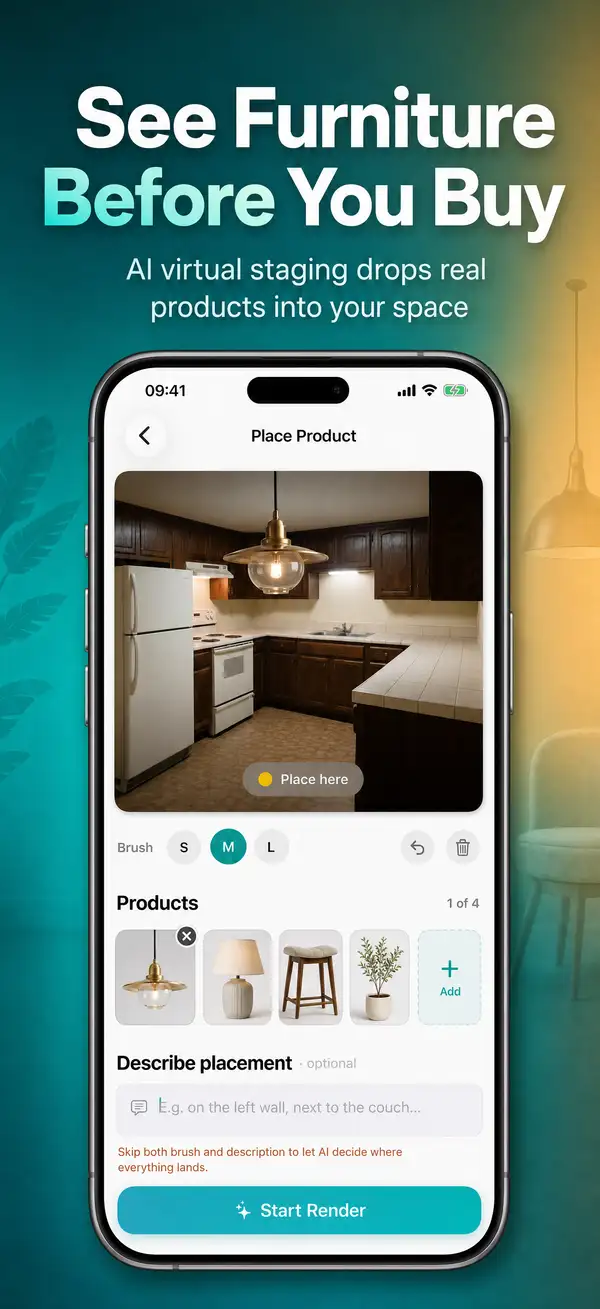
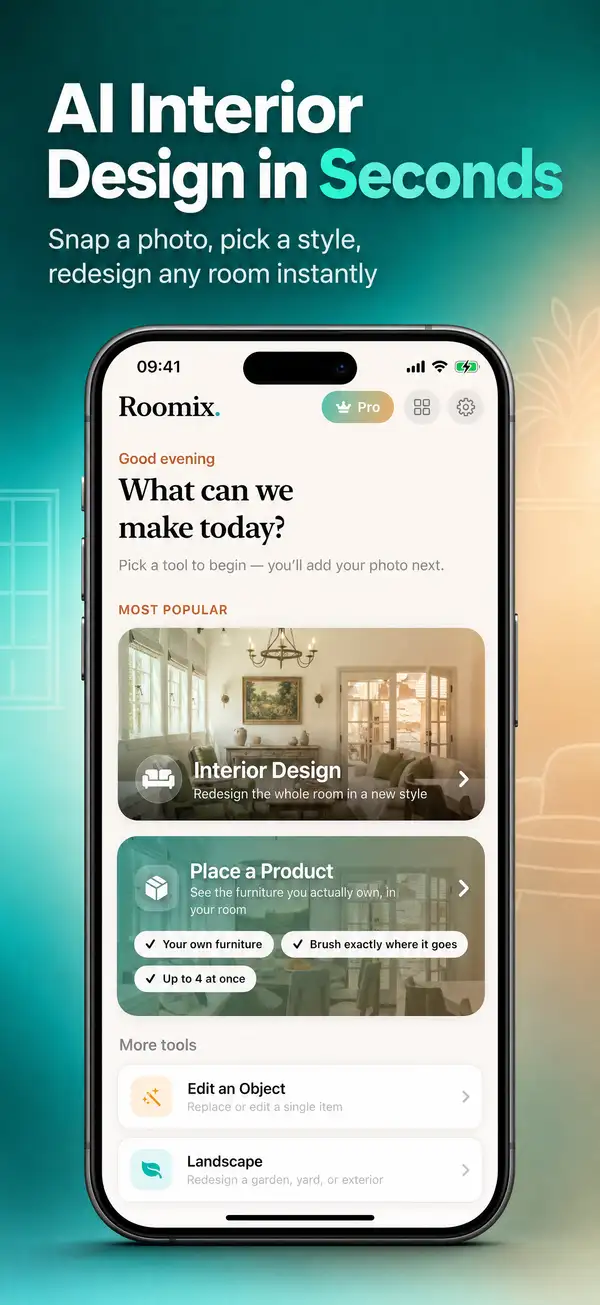
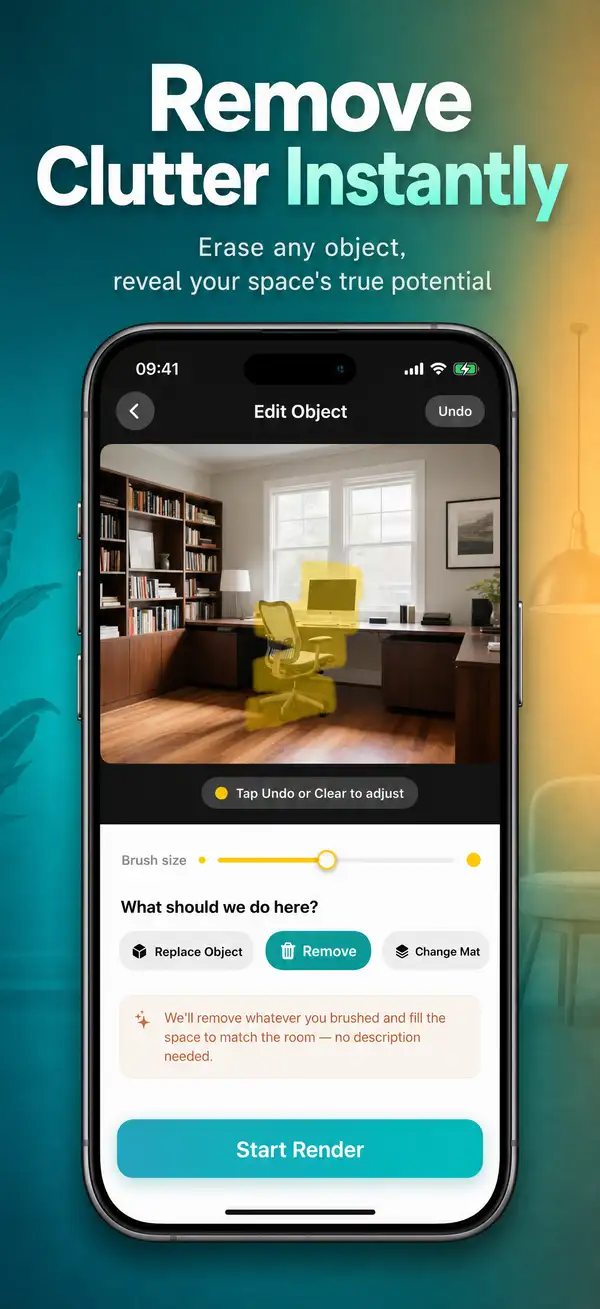
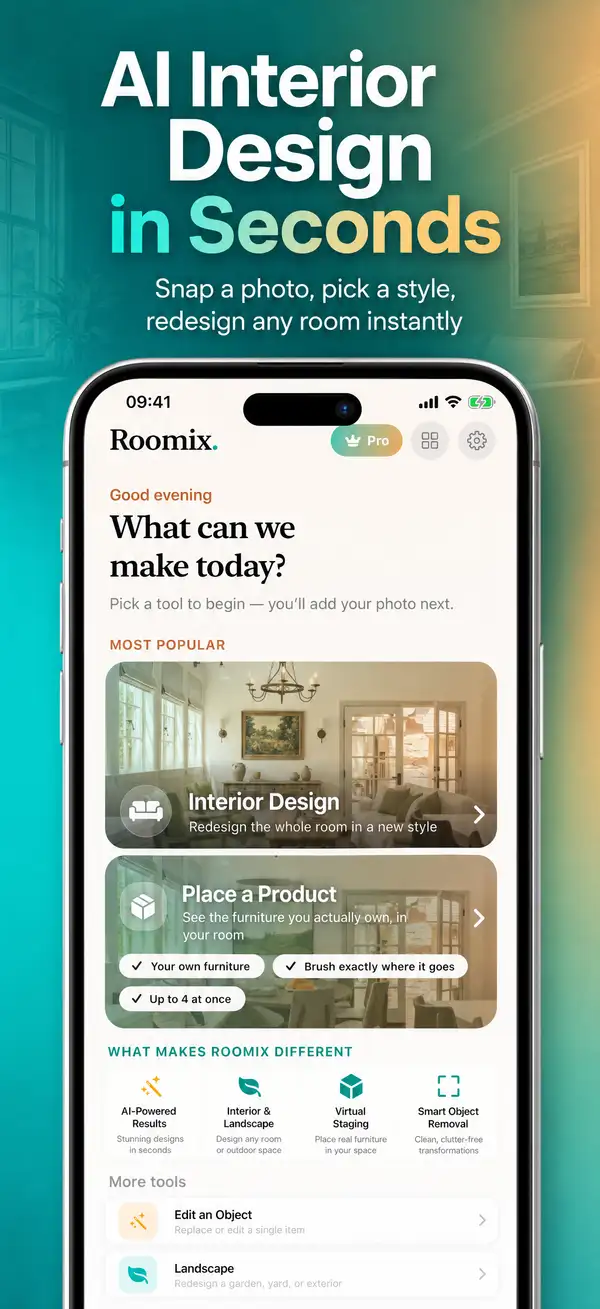
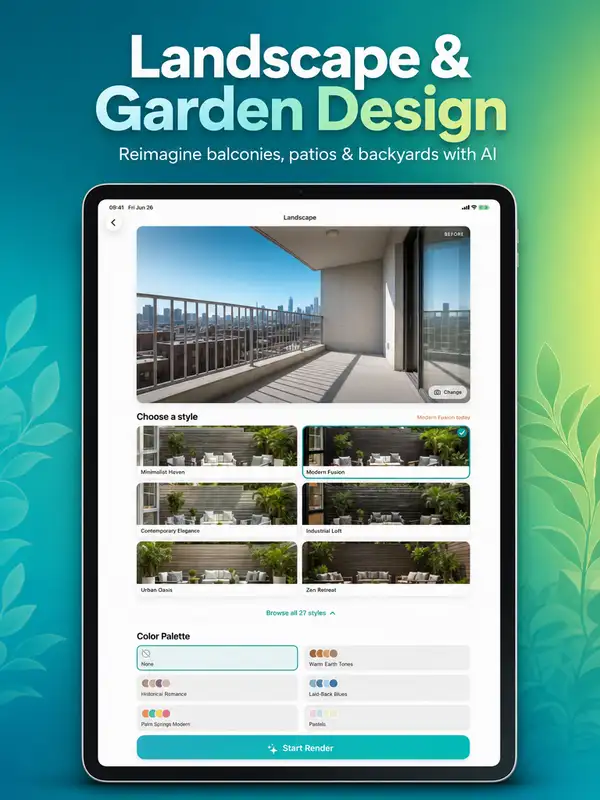
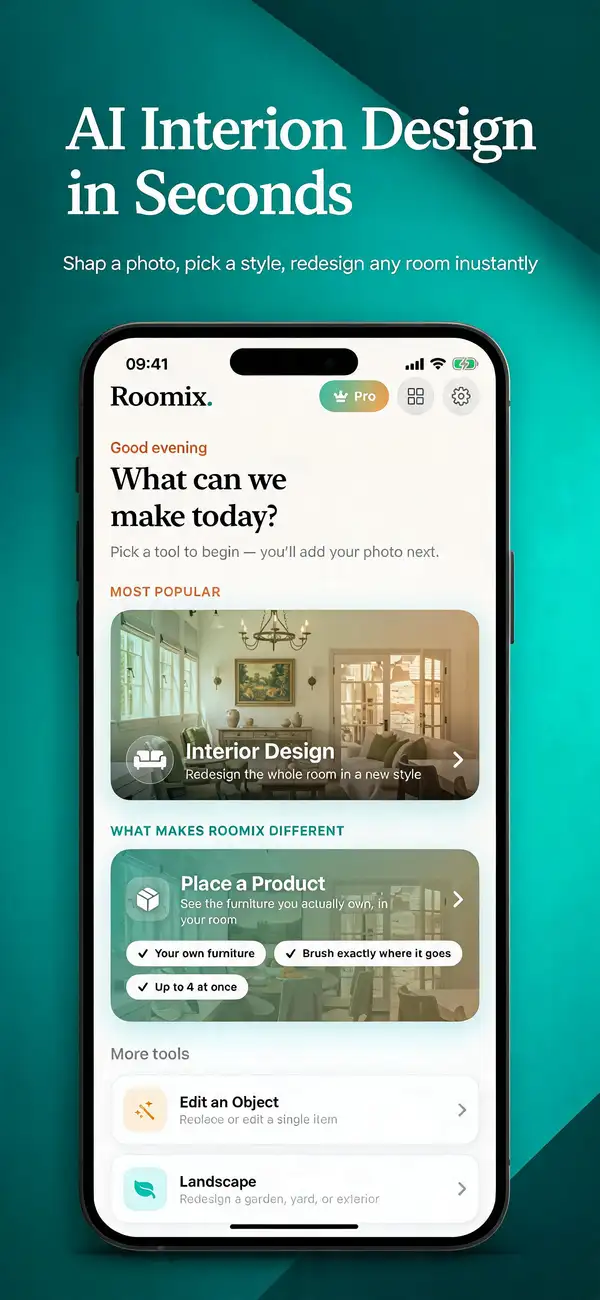
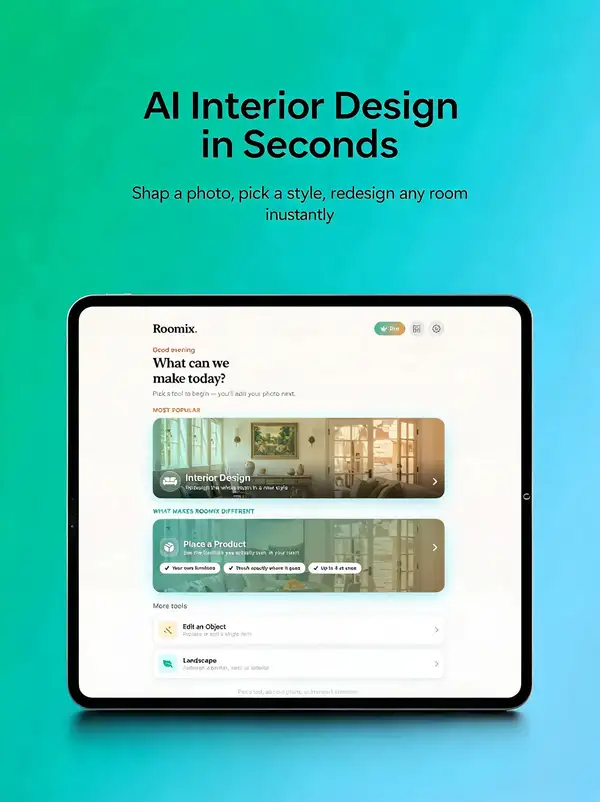
Turn a real app screenshot into a polished App Store marketing image.

Starts from $0.035 /run
2 model optionspublicpublished

Wrapper Input

Input

Target App Store device and orientation. Sets exact output pixel dimensions. • iphone_6_9 — 1290×2796 (6.9" iPhone, portrait) • iphone_6_5 — 1242×2688 (6.5" iPhone, portrait) • iphone_6_5_landscape — 2688×1242 (6.5" iPhone, landscape) • iphone_6_5_1284 — 1284×2778 (6.5" iPhone alt, portrait) • iphone_6_5_1284_landscape — 2778×1284 (6.5" iPhone alt, landscape) • ipad_13 — 2048×2732 (13" iPad, portrait) • ipad_13_landscape — 2732×2048 (13" iPad, landscape) • ipad_13_2064 — 2064×2752 (13" iPad alt, portrait) • ipad_13_2064_landscape — 2752×2064 (13" iPad alt, landscape)

Optional app icon, composited as a small rounded badge.

Optional. If omitted, a short headline is generated from the screenshot and application details.

Min: 1 - Max: 4

Number of options to generate per run. Each option is a separately billed output image.

Assess the app screenshot for visual presentation issues (unbalanced padding, awkward spacing, poor crops) and improve them via subtle zoom, reframing, or minor compositional adjustment — without altering any app UI content.

Your real app UI screenshot. Becomes image 1 (the device screen content). Required.

Optional hex or color name used as the dominant background color.

Optional supporting line. If omitted, one is added only if it strengthens the message.

Frame the screenshot in a phone mockup. Turn off for full-bleed (reduces UI redraw).

Optional. The hero image from your FIRST run, reused as the visual anchor so the whole set stays consistent (background, palette, typography, layout). Generate screenshot #1 with no style_reference, then pass that #1 OUTPUT here for every other screenshot — always the SAME first-run anchor, never the immediately previous output (chaining drifts).

Optional app context (what it does, audience, tone). Used to infer headline/subheadline and scene relevance.

You need to be logged in to run this model and view results.
Log in

Wrapper Output

Output

Generated image output
Generated in 172.606 seconds
Logs (1 lines)

Wrapper Examples

Examples

Example output 1Example output 2Example output 3Example output 4Example output 5Example output 6Example output 7Example output 8

Pricing

Base ModelPricing ModeEffective Cost
seedream-v5/editdefaultper output0.035
gpt-image-2/editper output0.151

Wrapper Details

Model Details

Turn a real app screenshot into a polished, App-Store-ready marketing image. Upload your real app UI screenshot and it is composed into a clean device mockup (or full-bleed) on a designed background, with a generated or supplied headline sized for the target App Store device.

NAME YOUR SCREENSHOT FILE MEANINGFULLY (important for MCP/API callers):

The model uses the uploaded screenshot's file name as a hint about what the screen is. Generic names like `image_3123.jpg`, `screenshot_2.png`, or `IMG_0042.png` carry no signal — the model cannot infer the page or feature from them, which weakens headline generation and contextual styling. At minimum, name the file after the page it shows, e.g. `home-feed.png`, `product-detail.png`, `checkout-cart.png`, `onboarding-welcome.png`. A descriptive name (plus optional `application_details`) lets the model write a far more relevant headline and pick fitting decorative accents.

How to use — generating a CONSISTENT SET (the right way):

App Store listings need a cohesive set of screenshots, not unrelated one-offs. Do NOT just run every screenshot in parallel with no shared context — that produces mismatched backgrounds, palettes, and typography. Instead:

1. Count how many screenshots you need. 2. Plan the whole set up front: write that many cohesive headline (and optional subheadline) pairs that tell one story across the set. 3. Generate screenshot #1 FIRST, with NO style_reference — this becomes your hero/anchor. 4. Take screenshot #1's OUTPUT image and pass it as `style_reference` for every remaining screenshot (#2..#N). Use the SAME anchor for all of them — do not chain each one to the previous output (chaining drifts).

Other tips: - Set `device` to your target (iphone_6_9 / iphone_6_5 / ipad_13); it sets exact output pixel dimensions. - Each `variants` option is a separately billed output image — lower it to 1 for a single, cheaper result. - Turn off `device_frame` for full-bleed screens; it reduces UI redraw and keeps your UI pixel-exact.