
Model Details
GPT Image 2 turns a text prompt into a high-quality image, and its two standout strengths are precise instruction-following and accurate in-image text. It reliably honors counts, spatial relationships, styles, and multi-part requests in a single prompt, and it renders legible, correctly spelled words directly inside the image — something most image models still struggle with. Describe a poster, a product label, a UI mockup, an infographic, or a scene with real words on a sign, and it places the text cleanly and keeps the composition on-prompt.
## Best for - Posters, flyers, and greeting cards where the headline text must read correctly - Product labels, packaging, and signage with brand names or short copy - UI mockups and app screens that need real, legible interface text - Infographics and slides combining layout, labels, and data callouts - Multi-constraint scenes ("three red apples on a wooden table, logo top-left")
## Choose another model when - You want to edit or transform an existing image rather than generate from a prompt — use an image-to-image / image-editing model - You need video instead of a still image — use a video model - You want to drive generation from reference images; this variant generates from text only, with no image input
## Tips - Put the exact words you want rendered in quotes in the prompt, e.g. `the headline "VISIT JAPAN"` — quoting tells the model what to spell verbatim - Be specific about layout, color, and style: state where elements sit ("logo top-left"), the palette, and the visual treatment - Combine constraints in one prompt — counts, positions, and styles are honored together - Use `num_images` (up to 4) to get several variations of the same prompt in one call
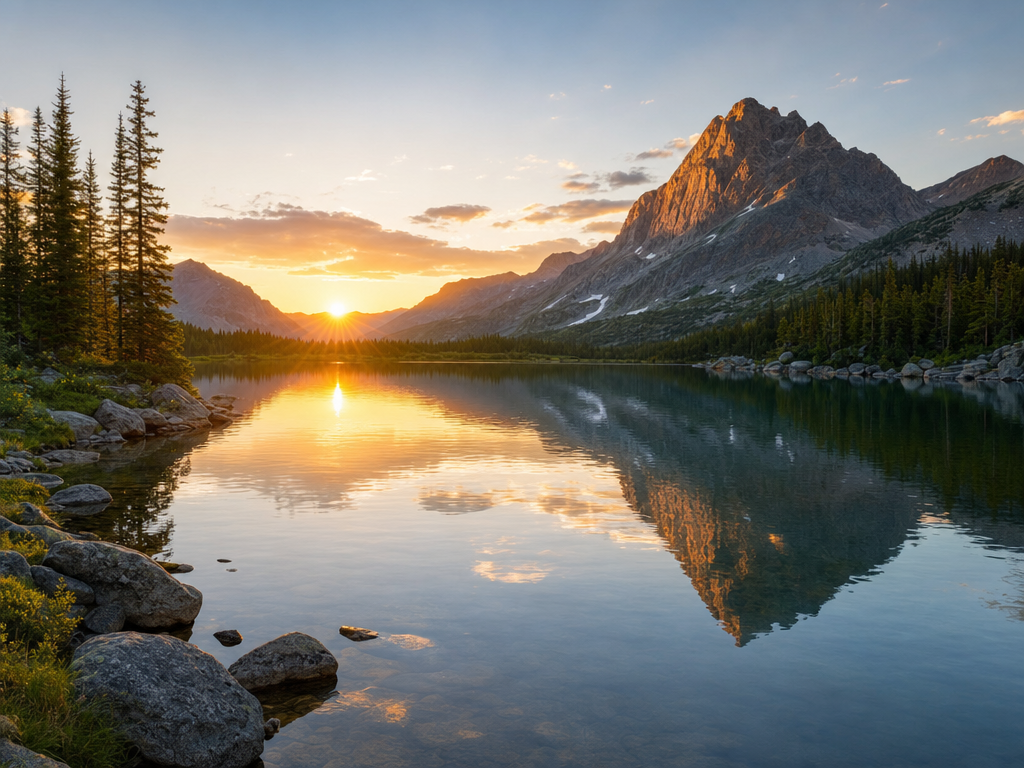
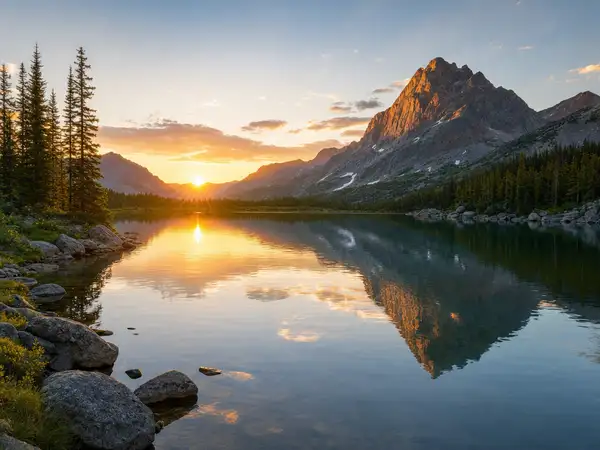
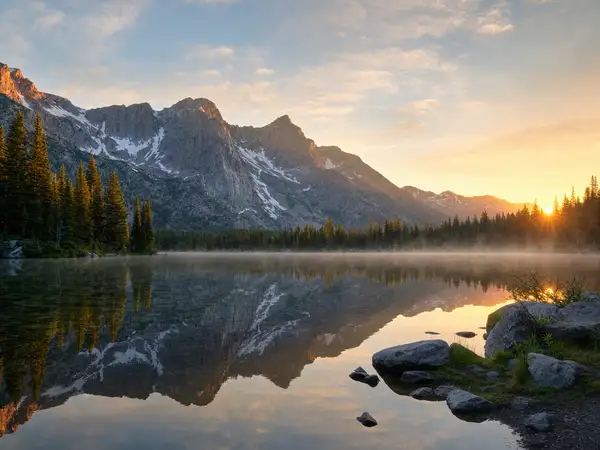
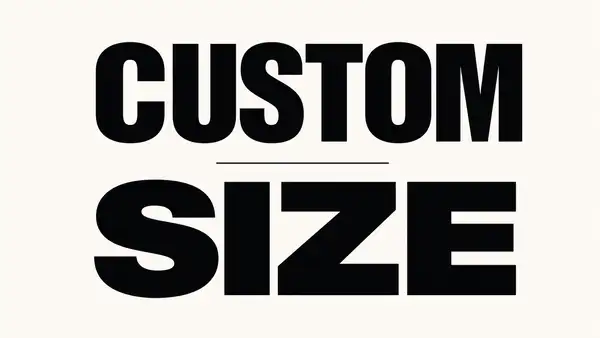
## Image size The `image_size` field accepts either a named preset or an exact pixel size. Presets set the aspect ratio and framing: `square_hd` or `square` (1:1), `portrait_4_3` or `portrait_16_9` (taller than wide), or `landscape_4_3` (default) or `landscape_16_9` (wider than tall). For a custom size, pass an object instead — `image_size: { "width": <px>, "height": <px> }` (up to 14142 px per side), e.g. `{ "width": 1280, "height": 720 }`. Match the orientation, or the exact dimensions, to where the image will be used.
## Limitations - Long, dense paragraphs of in-image text can still show occasional spelling slips - Tiny or heavily stylized text may lose legibility - Extremely complex multi-object scenes can drift from the prompt in fine details
To run via the ModelRunner JavaScript client: ```js import { modelrunner } from "@modelrunner/client";
const result = await modelrunner.subscribe("openai/gpt-image-2", { input: { prompt: 'a vintage travel poster of Kyoto with the headline "VISIT JAPAN"', image_size: "landscape_4_3", num_images: 1, output_format: "png", }, }); ```