
microsoft avatar

Florence-2 Large OCR with Region API

microsoft/florence-2-large/ocr-with-region

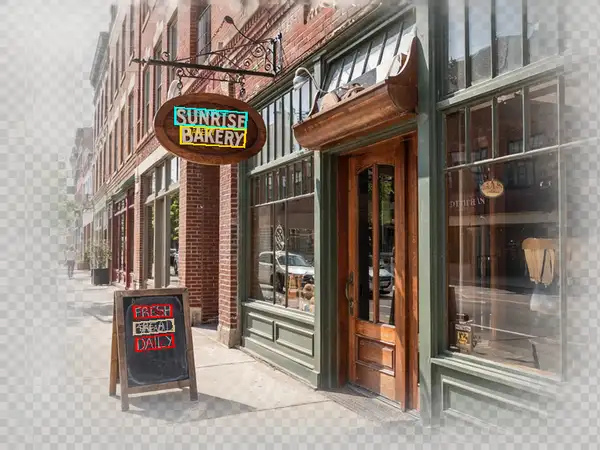
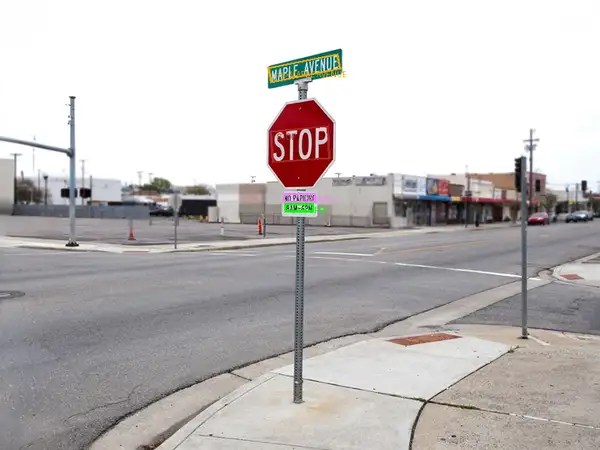
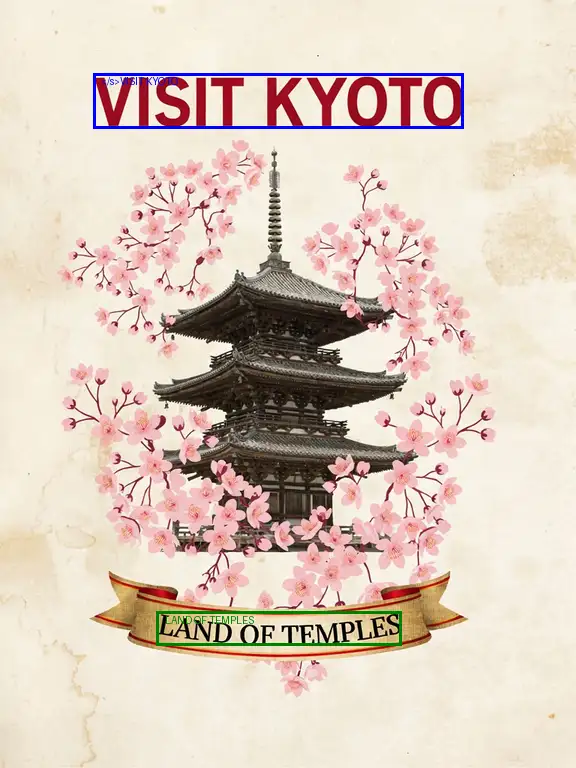
Locate and read the text in a photo and get back an annotated image with each detected text region boxed and labeled with what it says.

0

Model Input

Input

URL of the image to read and locate text in.

You need to be logged in to run this model and view results.
Log in

Model Output

Output

Loading
Generated in 1.373 seconds
Logs (1 lines)

Model Example Requests

Examples

Example output 1Example output 2Example output 3

Florence-2 Large OCR with Region API

Florence-2 Large OCR with Region is a image-to-image AI model by microsoft. On ModelRunner it runs through a REST API or via MCP from any AI assistant, at $0 per image.

POST https://queue.modelrunner.run/microsoft/florence-2-large/ocr-with-region

cURL

# Submit a request to the queue
curl -X POST https://queue.modelrunner.run/microsoft/florence-2-large/ocr-with-region \
  -H "Authorization: Key $MRUN_API_KEY" \
  -H "Content-Type: application/json" \
  -d '{
    "input": {
      "image_url": "https://media.modelrunner.ai/ymJSWPYsoTzWNMQzQHiJU.jpeg"
    }
  }'
# → { "request_id": "...", "status_url": "...", "response_url": "..." }

# Poll status_url until "COMPLETED", then fetch the result
curl "https://queue.modelrunner.run/microsoft/florence-2-large/ocr-with-region/requests/$REQUEST_ID/status" \
  -H "Authorization: Key $MRUN_API_KEY"
curl "https://queue.modelrunner.run/microsoft/florence-2-large/ocr-with-region/requests/$REQUEST_ID" \
  -H "Authorization: Key $MRUN_API_KEY"

JavaScript

import { modelrunner } from "@modelrunner/client";

const result = await modelrunner.subscribe("microsoft/florence-2-large/ocr-with-region", {
  input: {
    "image_url": "https://media.modelrunner.ai/ymJSWPYsoTzWNMQzQHiJU.jpeg"
  },
});
console.log(result);

Python

import os
import requests

headers = {"Authorization": f"Key {os.environ['MRUN_API_KEY']}"}

submitted = requests.post(
    "https://queue.modelrunner.run/microsoft/florence-2-large/ocr-with-region",
    headers=headers,
    json={"input": {
      "image_url": "https://media.modelrunner.ai/ymJSWPYsoTzWNMQzQHiJU.jpeg"
    }},
).json()

# Poll submitted["status_url"] until "COMPLETED", then:
result = requests.get(submitted["response_url"], headers=headers).json()

Input parameters

NameTypeRequiredDescription
image_urlstring (uri)yesURL of the image to read and locate text in.

Machine-readable: OpenAPI schema · llms.txt

Use Florence-2 Large OCR with Region from Claude & Cursor (MCP)

Point Claude Code, Claude Desktop, Cursor, or any MCP client at the ModelRunner MCP server and Florence-2 Large OCR with Region becomes a tool your assistant can call directly — it authorizes via OAuth (no API key in config) and runs this model with the run_model tool using the endpoint microsoft/florence-2-large/ocr-with-region.

MCP client config (Claude Desktop, Cursor)

{
  "mcpServers": {
    "modelrunner": {
      "command": "npx",
      "args": ["-y", "mcp-remote", "https://mcp.modelrunner.run/mcp"]
    }
  }
}

Claude Code

claude mcp add --transport http modelrunner https://mcp.modelrunner.run/mcp

Then ask your assistant, for example: “Run microsoft/florence-2-large/ocr-with-region on ModelRunner to generate image”. MCP setup guide.

Model Details

Model Details

Florence-2 Large OCR with Region finds where text appears in a photo, reads it, and returns the same image with each detected text region drawn as a labeled box showing the recognized text. Give it one image URL and you get back an annotated picture that marks every text region it located — signage, labels, headings, printed lines — alongside structured per-region results (each box's position and the text it read). It needs no prompt and no tuning: one image in, one annotated image out. Built on Microsoft's Florence-2 vision-language foundation model, it combines detection and recognition in a single pass so you can see both *what* the text says and *where* it sits in the frame.

## Best for - Reading and locating text on signage, product labels, receipts, and document photos - Visualizing where text sits in an image with labeled boxes for review or QA - Checking text placement and coverage on packaging, ads, or UI screenshots - Spatially-grounded OCR where you need both the transcript and its position, not just a flat string

## Choose another model when - You only want the raw transcript with no boxes or coordinates — use a plain OCR / text-recognition model that returns text - You want to detect non-text objects (people, vehicles, items) rather than text — use an object detection model - You want a written caption or description of the scene instead of text regions — use an image captioning model

## Tips - Feed a clear, reasonably high-resolution photo; small or low-contrast text is easier to read with more pixels. - The returned image is a standard PNG with the text-region boxes and labels already rendered, so you can display or compare it directly against the original. - There are no thresholds or prompts to set — every run on the same image is deterministic. - Best on printed or signage-style text; dense paragraphs and cursive handwriting are harder.

## Limitations - Reads printed and display text well; small, blurry, stylized, or handwritten text may be missed or misread. - Overlapping or tightly packed text regions can be merged or split. - Very rotated or heavily skewed text may be located but read less reliably.

To run via the ModelRunner JavaScript client: ```js import { modelrunner } from "@modelrunner/client";

const result = await modelrunner.subscribe("microsoft/florence-2-large/ocr-with-region", { input: { image_url: "https://media.modelrunner.ai/example-storefront-sign.png", }, }); ```